Connecting your game server
Warden talks to your server over RCON. There are three ways to set it up - /server add asks which:
- RCON details - you type the server's IP, its RCON port and the RCON password. Works with any host.
- G-Portal - you give Warden access to your server on G-Portal and paste the server page's link; Warden finds the details itself. See Connecting through G-Portal.
- Nitrado - you add Warden as a guest on your server with view-only access to its settings and give it the server's ID of service; Warden finds the details itself. See Connecting through Nitrado.
Connecting through G-Portal
- On G-Portal, open your server, then Administration → Permissions.
- Add Warden's G-Portal account. Run
/server addin Discord: it shows Warden's account id (a long code of letters and numbers) - copy it and paste it into Permissions. - Copy your server page's address from your browser. It has a number in it, like
https://www.g-portal.com/eur/server/rust-console/1234567/. - In Discord run
/server add, pick G-Portal, and fill in a short name and the link.
Warden reads the server's IP and RCON port from G-Portal and connects. If G-Portal doesn't share the RCON password, Warden asks you for just that.
If you later change the RCON password or the server moves, Warden notices it's offline, reads the new details from G-Portal and reconnects - no need to add the server again.
Want Warden to restart the server (for restart countdowns)? Also give its account the permission to start, stop and restart the server in Permissions. Without it Warden only warns players.
Connecting through Nitrado
- On Nitrado, open your server list and find your Rust Console server.
- Under Guest Access Rights, press Edit and add Warden's Nitrado username - run
/server addin Discord to see it. - Tick View server settings and save. That's all Warden needs to connect - it can't start, stop or change your server with only that. Want Warden to restart the server for restart countdowns? Also tick the right to restart / start and stop the server.
- Note your server's ID of service - the number on your server list.
- In Discord run
/server add, pick Nitrado, and fill in a short name and the ID of service.
Warden reads the server's IP, RCON port and RCON password through Nitrado's official API and connects. If you change the RCON password later, it picks up the new one by itself.
Finding the details yourself
You need three details from your host: the server's IP, its RCON port and the RCON password.
On G-Portal
1. Open your server
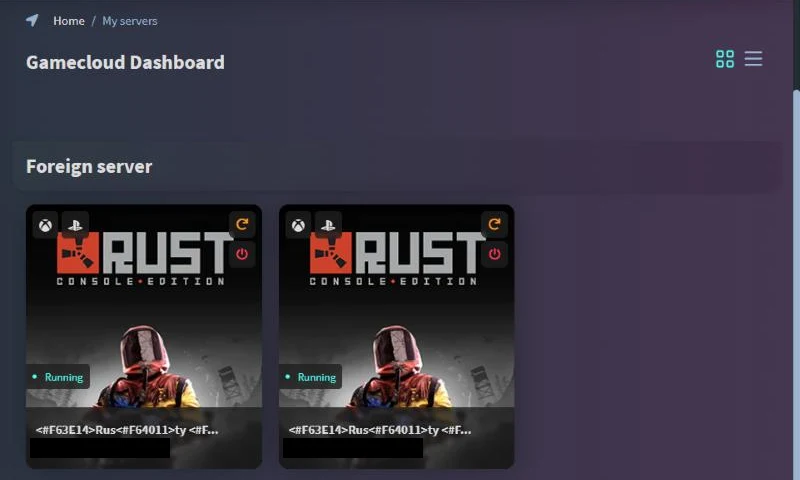
Log in to G-Portal and open your Rust Console server from your server list.
2. The IP and RCON port: "Access data"
On the server's main page, scroll down to the Access data box. It lists:
- IP - use this exactly (there's a copy button next to it).
- RCON port - the number Warden needs.
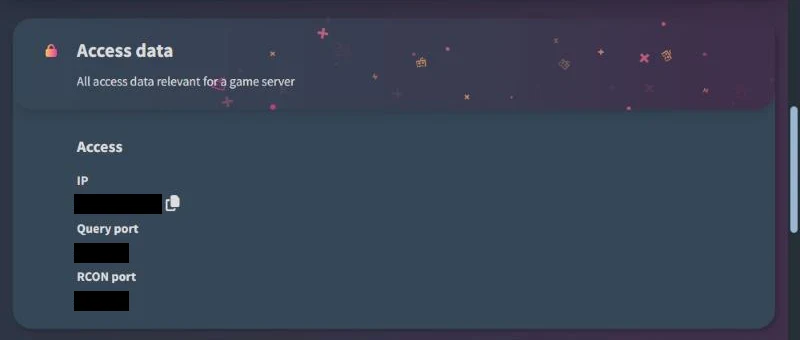
IP: 1.2.3.4:12345) - that one is the game port.3. The RCON password: Basic Settings
Open the three-line menu and choose Basic Settings, then the Server settings tab. The Rcon Password field is near the top.
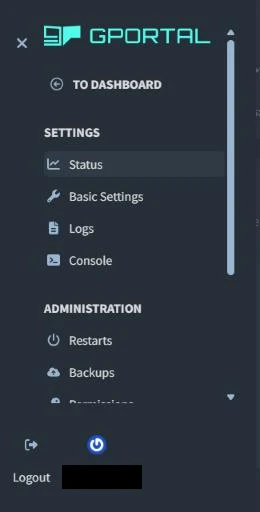
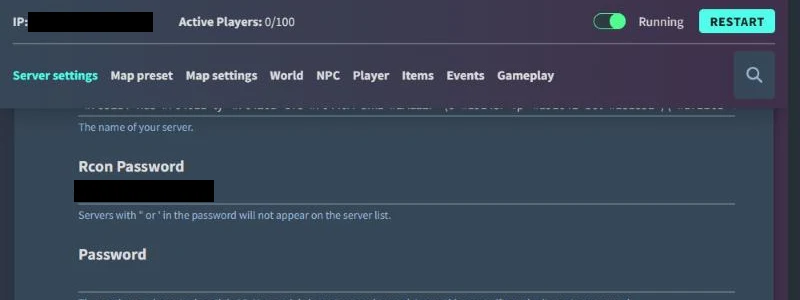
If the Rcon Password is empty or weak, set a long random one, save, and restart the server.
On Nitrado
Open your Rust Console server in the Nitrado web interface and look in its settings for the RCON port and RCON password, and in the overview for the server's IP (just the address - leave off the : and the port after it). The idea is the same as on G-Portal - or skip all that with Connecting through Nitrado.
/server add form - never in a channel, a DM or a website that isn't wardenrce.com. Warden stores it encrypted and never shows it again.Add the server in Discord
- In your Discord, run
/server add. - Fill in the form:
- Short name - e.g.
MainorEU 2x. You'll use it in commands when you have more than one server. - Server IP, RCON port, RCON password - from the steps above.
- Short name - e.g.
- Press Submit. Warden tries the details straight away and tells you whether it got in.
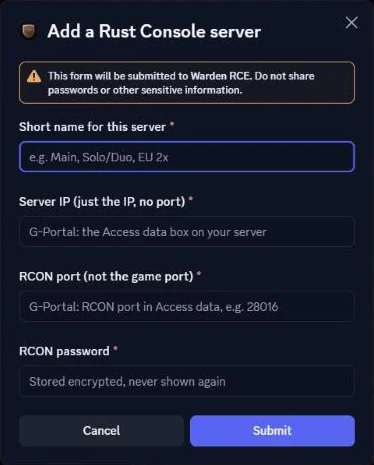
When it works you'll see a success message with a Set up channels button - press it, or run /setup later.
More than one server
Run /server add once per server. Commands that act on a server then have a server option; leave it out when your Discord has only one - or only one switched on (a server you've turned off with /server disable doesn't count). Removing, enabling or disabling a server always asks which. /server list shows every server and whether it's connected.
Each server can have its own channels, or share another's - press **Share name's channels** after adding it. See Several servers in the same channels.
If it doesn't connect
- Double-check the RCON port - on G-Portal, the one in Access data, not the one after the IP at the top.
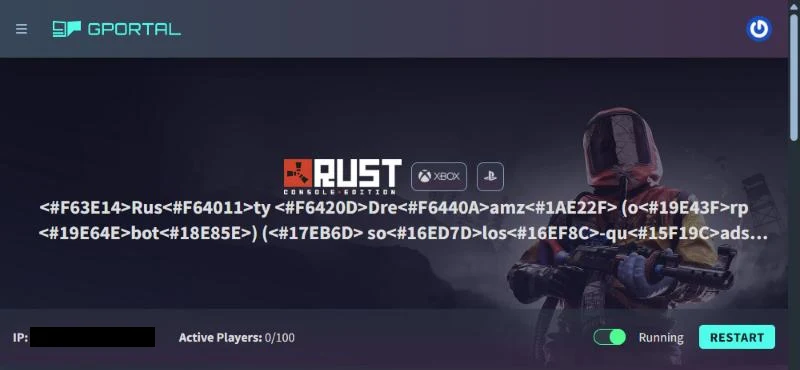
- Make sure the game server is running - the switch next to RESTART on the server's page.
- If you changed the RCON password, run
/server edit- the IP and port are filled in, type the new password. Every setting, feed and stat is kept. (Added through G-Portal or Nitrado? Warden picks the new one up by itself within about half an hour.) /server reconnectmakes Warden try again straight away.
More in Troubleshooting.
Changing the details later
/server edit server: changes how Warden connects to a server without touching anything else:
- RCON details - a new IP, RCON port or RCON password. The IP and port are filled in; the password box is always empty, because Warden never shows a saved password - type it in even if it hasn't changed.
- G-Portal or Nitrado - switch a server you added with RCON details to the host's access, so Warden reads the details itself and picks up a new password by its own.
The new details are tested first; if they don't work, nothing changes.
/server rename server: name: changes the name Warden uses for it (in commands, feeds and on the dashboard) - and the channel category /setup made, if it still has the old name. Its in-game name is set on your host's page, not here.
46.251.234.141. If you paste it with a port on the end (46.251.234.141:10150) or http:// in front, Warden takes those off; the RCON port always goes in its own box.Pausing or removing a server
| Command | What it does |
|---|---|
/server disable | Warden disconnects and stays off; every setting is kept. /server enable turns it back on. |
/server remove | Disconnects and deletes the server's settings in Warden. If it was premium, your bill goes down. Its players' stats stay on the stats site - kills, playtime and past wipes - with the server shown as closed. |