The web dashboard
Most of Warden can be set up from your browser at wardenrce.com/dashboard instead of with slash commands.
Logging in
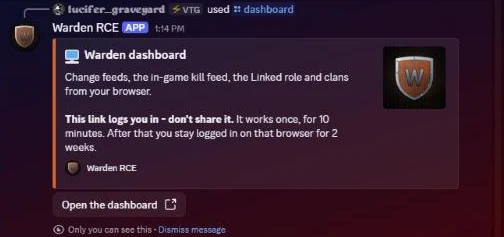
- In your Discord, run
/dashboard(you need Manage Server). - Warden replies with a private link, only you can see it. It works once, for 10 minutes.
- Open it - you're logged in for 14 days on that browser.
- Discord may ask you to let Warden see your account - press Authorize. Warden only checks whether your Discord account has two-factor authentication (2FA) on.
Every request checks with Discord that you're still in that server with Manage Server, so removing someone's permission removes their dashboard access too.
From 1 December 2026, the dashboard needs 2FA on your Discord account. The dashboard can run commands on your game servers, so a stolen Discord password shouldn't be enough to get in. Turn it on in Discord under User Settings → My Account → Enable Authenticator App (Discord's guide). Until then the dashboard only reminds you. Slash commands keep working without it, and players' own pages never need it.
What's on it
Your Discord
- Servers - each game server, whether it's connected, and a one-click Set up channels.
- Linked players - everyone linked, searchable by gamertag or Discord name, with their stats, Change gamertag and Unlink - and Link a member by hand for a player who can't get
/linkto work (like/links force). - Clans - every clan, its members and K/D; rename, recolour, change ranks, remove members or disband.
- Bans - ban a player (for good or for a while, on one server or all), see who's banned and why, unban, and the bans that ended.
- Admin alerts - the alert channel and what gets posted, including the host console log.
- Tickets - post or move the ticket button, the staff role, log channel and category, where transcripts go, and recent tickets.
- VIP - give timed or lifetime VIP (seconds to months, one server or all, with a Discord role if you like), see who has it and when it ends, and take it back.
- Staff roles - which staff commands each role may use, ticked per command (only people with Manage Server can change them).
- Stream alerts - the YouTube, Twitch and Kick creators Warden posts about when they go live: add one, change where it posts, its ping and message, pause it, post a test card, or remove it.
- Change history - every change made on the dashboard, with Undo - see below.
- The Linked role, nicknames and clan rules.
Each game server has tabs:
| Tab | What you can do |
|---|---|
| Live | What the server is doing right now, graphs, who's online, a console - see below |
| Server listing | Your description, tags and Discord invite on stats.wardenrce.com - or hide the server from the site |
| Feeds | A Getting started checklist (until it's all done or you hide it - it comes back if something goes wrong); pick a channel for each feed; the live status card, the next wipe and its countdown, and what a wipe resets (and auto wipe); the server picture beside each feed post - upload it or paste a link; your server's map; the in-game kill feed's settings, colours and wording with live previews |
| Emote kits | Add, lock and remove emote kits |
| Kit builder | Build and change your server's kits, slot by slot - see Kit builder |
| Shop (premium) | Items, kits, vehicles, teleports, command groups, Discord roles, VIP and XP boosts for sale, shown under their categories with pictures and prices. Drag an item by its handle to reorder it or move it to another category, drag a category to reorder categories, tick several items to change prices (a sale is -20%), cooldowns or categories together, search, and collapse what you are not working on. Save the shop as a file or load one |
| Economy (premium) | Settings, give or take money, every wallet and its history, wipes, and the Economy Setup (apply it or switch its style) |
| Battle pass (premium) | Turn it on, XP settings, load a ready-made track (PvP, Farmer, Builder, Raider...), change any tier's reward with item pictures, start a new season |
| Rewards | The daily streak day by day, drops on a timer, in-game giveaways (premium), and every cooldown running now - clear one player's, one item's or everyone's |
| Crates (premium) | Make loot crates and add up to 100 rewards, each with its weight and its chance worked out as you type. Get the product command and the public odds page to sell one on your store |
| Timers | Announcements and commands every few minutes or at set times, with Run now. Server events (airdrops, Chinook, Cargo Ship, Attack Heli on a schedule) and the Cargo Ship at a harbour settings are at the bottom |
| Restarts | A restart countdown now, or every day at set times |
| Command groups | Write groups with click-to-insert placeholders, check them, run them |
| Teleports | Monuments and your own places on a map of the server |
| Portals (premium) | Make portals - teleports, DeathMatch and Aim Train - on a teleport place or where you stand in game, change their settings and prizes, add Aim Train spawn points, and see who is in one right now |
| Dial & Ride (premium) | Add rides, change their phrase, fuel, cooldown, cost and role, switch one off, or remove it |
| Raid protection (premium) | Settings and every protected base on the map |
| Ban Boom (premium) | Ban explosives for a while - tick which, pick how hard and for how long - see what's banned and until when, and put them back |
| Modules | The Server Setup (set the server up from a preset) at the top, then switch whole features on or off for this server |
| Command history | Every console command Warden sent this server in the last 30 days - from slash commands, the shop, emote kits, timers, VIP, giveaways and the dashboard - with the game's reply. Search by gamertag, item or command to check something happened |
| Connection & channels | How the server is connected (RCON, G-Portal or Nitrado) and a button to read its details again; its channels; share another server's channels or remove its channels, with a preview first |
| Homes | Settings, and every saved home with its grid square - remove one |
| Bounties (premium) | Settings, open bounties (call one off: the money goes back), and recent ones |
Changes made here that the slash commands would post to your admin alerts - bans, money, modules, removed homes, called-off bounties, cleared cooldowns, Ban Boom - are posted there too, marked (dashboard).
The Live tab
Each game server's Live tab is its command centre. It updates by itself every 15 seconds while it's open.
- Right now - players (and the queue), server FPS, entity count, uptime, the in-game time, game memory, network traffic and when the map started. Refresh now asks the server straight away. Game memory is what the game itself is using - your host's panel counts the whole server, so its RAM graph reads higher.
- History - server FPS, entities and players online over the last 1, 6, 24 or 48 hours, recorded once a minute. Hover a graph for exact values. A gap in a line means Warden wasn't connected (a restart, or the server was down).
- Online - everyone on the server, their console, how long they've been on and their ping, with a Kick button. Kicks go in the player's notes and your moderation alerts.
- Quick give - give one of your server's kits to the players you tick, or everyone online, straight away.
- Console - run any console command and see the reply, like
/runin Discord. - Game chat - send a message to everyone in game, with a preview of how it looks.
- Random items (premium) - the game mode's settings, and who got what last round.
- Kill heat map (premium) - turn it on and see where on the map PvP kills happen, as dots on the grid with the busiest squares listed, over 1, 7 or 30 days. Once a minute at most, Warden looks up where the killers are standing, so each dot is close to where the fight was.
/heatmap on,/heatmap topand/heatmap offdo the same in Discord.
Console commands, game chat messages and kicks from here are posted to your admin alerts, marked (dashboard).
Kit builder and Tools
- Kit builder tab - build your server's real game kits slot by slot (clothing, belt, inventory), load and change the ones already there, and copy or paste kit codes. See Kit builder.
- Tools tab - Copy this setup to another server - tick what to copy (settings and modules, shop, timers, command groups, kits, battle pass, teleport places) and copy it onto another server in the Discord in one go; what you tick replaces that server's own.
- Light or dark - the button at the top switches the dashboard between a dark and a light theme; your browser remembers it.
- Colour bar - every box that goes to game chat (timers, kill feed wording, command groups) has colours above it: select text, click a colour. See Colours in game chat.
- Tools tab - Server name maker - build the name players see in Rust's server browser (your name, region, rates, group size, PvP/PvE, wipe, anything else) and see it in a browser-style row with a character count, then copy it into your host's server name box (G-Portal: Basic Settings; Nitrado: your server's settings). It starts from your server listing's tags.
- Tools tab - Colour text - build a coloured message piece by piece, see it as it looks in game chat, and copy the text for timers, the kill feed, emote kits or
/say.
Players have their own page too - see Your page.
Who can use it
Only these people can get in to your Discord's dashboard:
- People with Manage Server in your Discord - checked live with Discord, so taking it away locks them out within a minute.
- Roles you choose under Dashboard access (Admin or Moderator).
- The Warden team - only after you open a support chat from the dashboard, read-only unless you allow changes from the chat (for up to an hour), and every change they make is posted in the chat.
Recent dashboard visits (under Dashboard access, for people with Manage Server) lists everyone who opened your dashboard in the last 90 days: who, as what, when, and how many changes they made. Warden staff show as WARDEN STAFF. If something there looks wrong, take away the role or the person's Manage Server, and tell us in a ticket.
From 1 December 2026, everyone in 1 and 2 needs 2FA on their Discord account (see Logging in).
Anyone with Manage Server can. To let other people in without giving them that, give their Discord role dashboard access - on the Servers tab, or with /dashboard-access:
- Admin - everything.
- Moderator - can look at everything, and change bans, notes, kicks, game chat and gamertags.
They open it with /dashboard like you do. Only people with Manage Server can change who has access. Which slash commands a role can use is set with staff roles.
Change history
The Change history tab (on your Discord's page) lists every change made on the dashboard in the last 30 days - what, on which server, who, and when - newest first.
Undo puts Warden's settings back the way they were before that change: a shop item's old price, a deleted timer back, a shop file un-loaded. It's careful:
- If something has changed the same thing again since (a newer edit, or a player buying from a changed shop), Undo refuses and says so - undo the newer change first, or change it by hand.
- Changes that also did something in game or in Discord - bans, VIP, portals, Ban Boom, the console, channels, linked players - are listed but can't be undone here, because putting Warden's settings back wouldn't take those back.
- Undoing is posted in your admin alerts.
Help and support
- Guide for this page under the tabs opens the guide page for the tab you're on, and Guide in the top bar opens the whole guide.
- The Help button in the bottom corner has the same guide links and a chat with the Warden team. Write what's wrong and send it; replies show up right there, and the Help button gets a dot when one arrives while it's closed. End chat when you're done - writing again starts a new one.
While you have a chat open, the Warden team can look at this Discord's dashboard to see your setup - read-only, so they can't change anything. That ends when the chat is closed, or two days after the last message.
For hands-on help, press Let the team make changes (1 hour) in the chat. The team can then change settings for you, and every change they make is posted in your chat. Press Stop any time to make it read-only again; it also stops when the hour is up or the chat ends.
Safety
RCON passwords are never shown or typed on the website - servers are added with /server add in Discord. Log out with the Log out button in the top corner.